Your brain and its folders
What the brain is, how to add notes and files, and how folders are organised.
Your brain is where your notes, projects and files live, kept where the AI can read them and answer from them. It is the first screen you see (the lightning-bolt icon in the left rail).
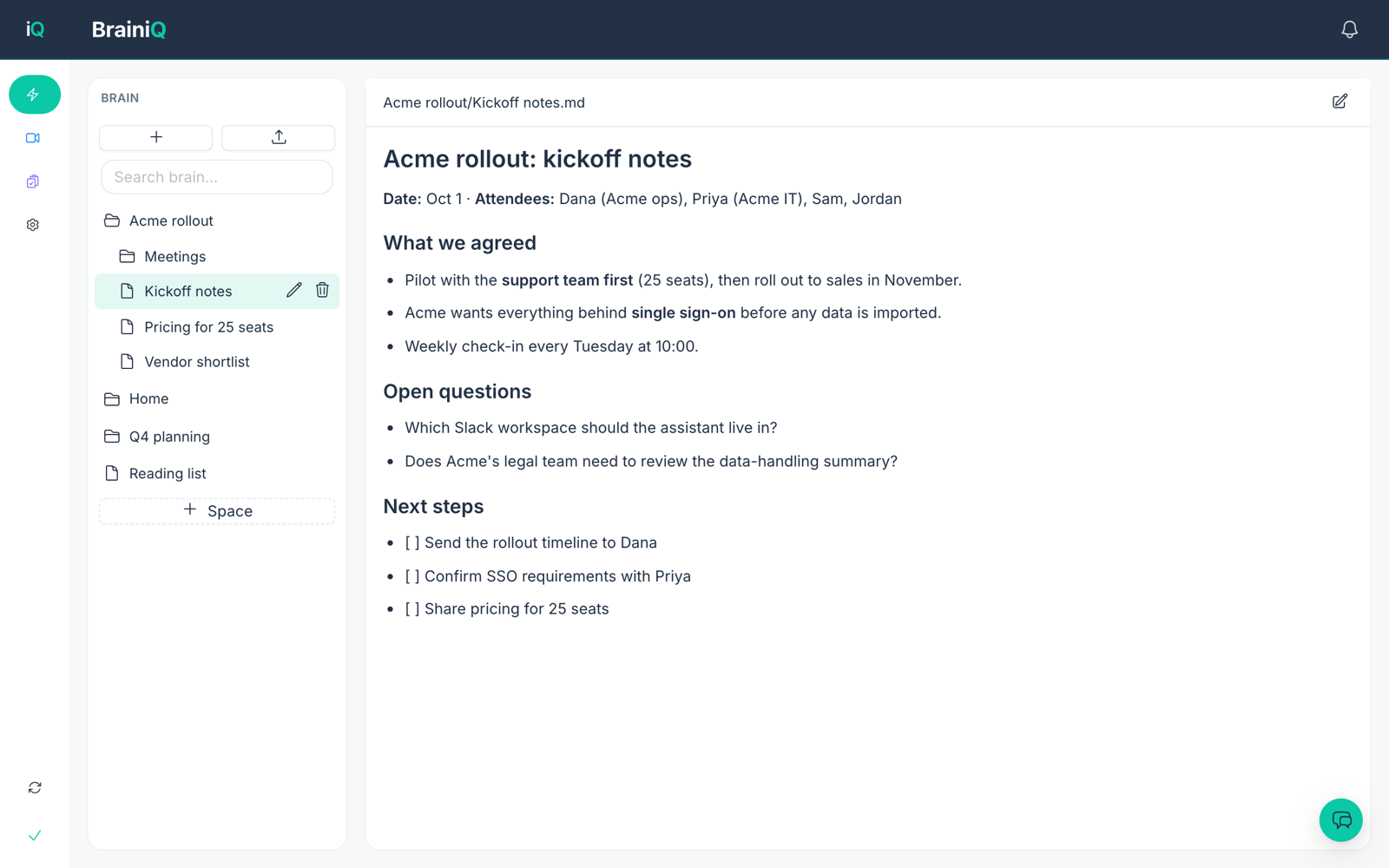
Find your way around
- The tree on the left shows your folders and files. Click a folder to open it and a file to read it on the right.
- Search brain at the top of the tree searches your notes.
- The + button creates a new File or Folder.
- The upload button adds files from your computer. You can also drop files onto the tree. See Uploading to your brain and Large files for limits.
- Click the pencil at the top of an open note to edit it.
- Drag a file onto a folder to move it.
Which folders can Dynamiq see?
Separate from your brain, you choose which folders on your computer your agents can work in. Add or remove them in Settings, in the Folders card. Everything inside a folder you add is included and nothing outside them is.
Keep things tidy
Put each project in its own folder (for example one for a client or a quarter's plan). Folders map neatly onto Spaces, where each space gets its own agent who only works in that corner of your brain.