Your first conversation (chat and voice)
Ask your Right Hand a question by typing or by talking.
You talk to your Right Hand (or a space's agent) from the chat, which is available from any screen.
Chat
- Click the round chat button at the bottom right of the window. The chat opens with your Right Hand.
- Type your question and press Enter, or choose Send. Use the paperclip to attach a file.
- While he works, a steps line shows what he is doing, such as searching your brain or reading a file. Expand it to see the details.
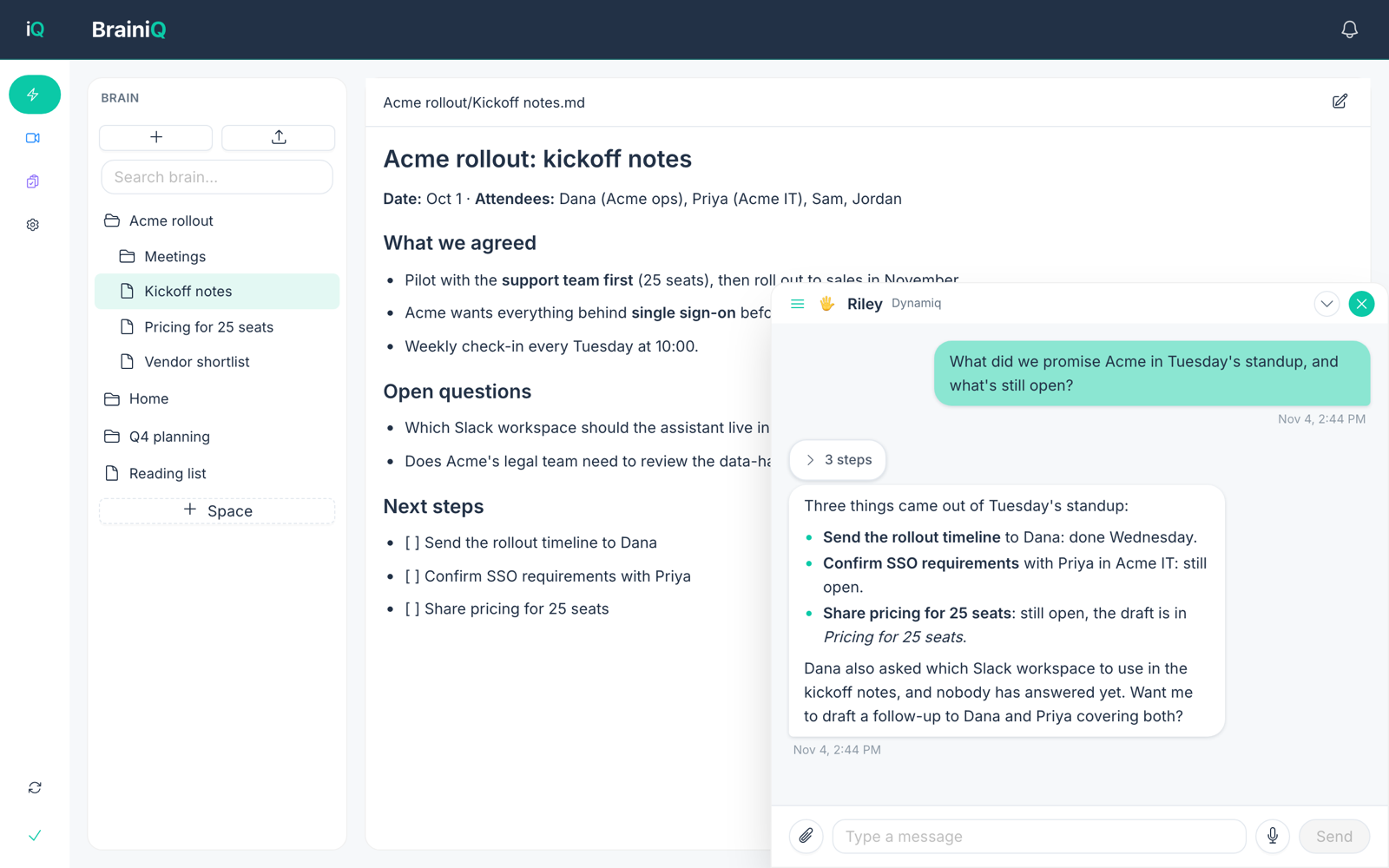
Good first questions: What's in my brain about this project? What's still open from last week's meeting? Summarise this note.
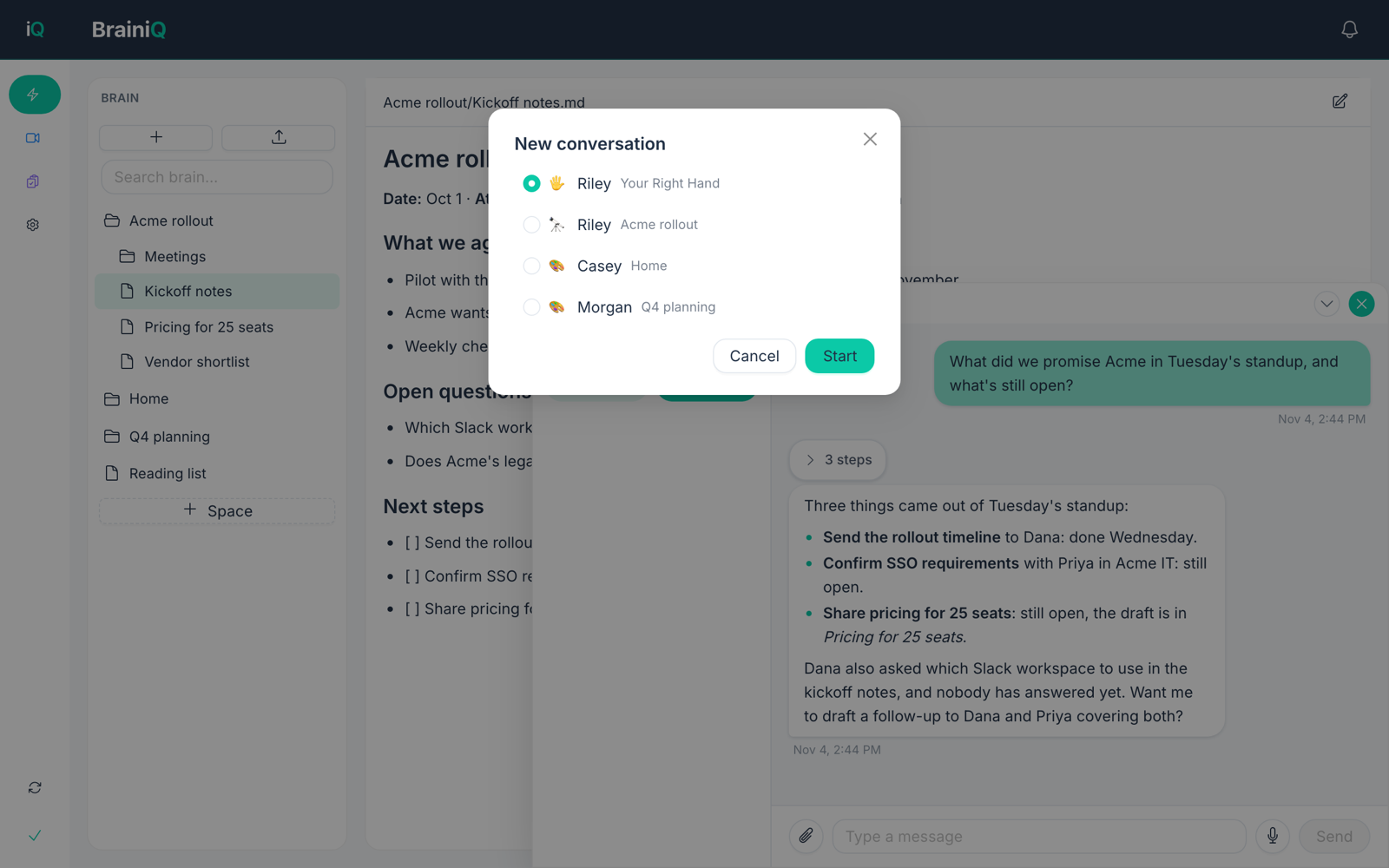
Start a new conversation
Open the conversation list with the menu button at the top left of the chat and choose New chat. Pick your Right Hand or the agent of one of your spaces, then Start.
Voice
- In the chat, click the microphone button next to the message box.
- Allow microphone access if your computer asks. If you declined earlier, turn it on in your system's privacy settings.
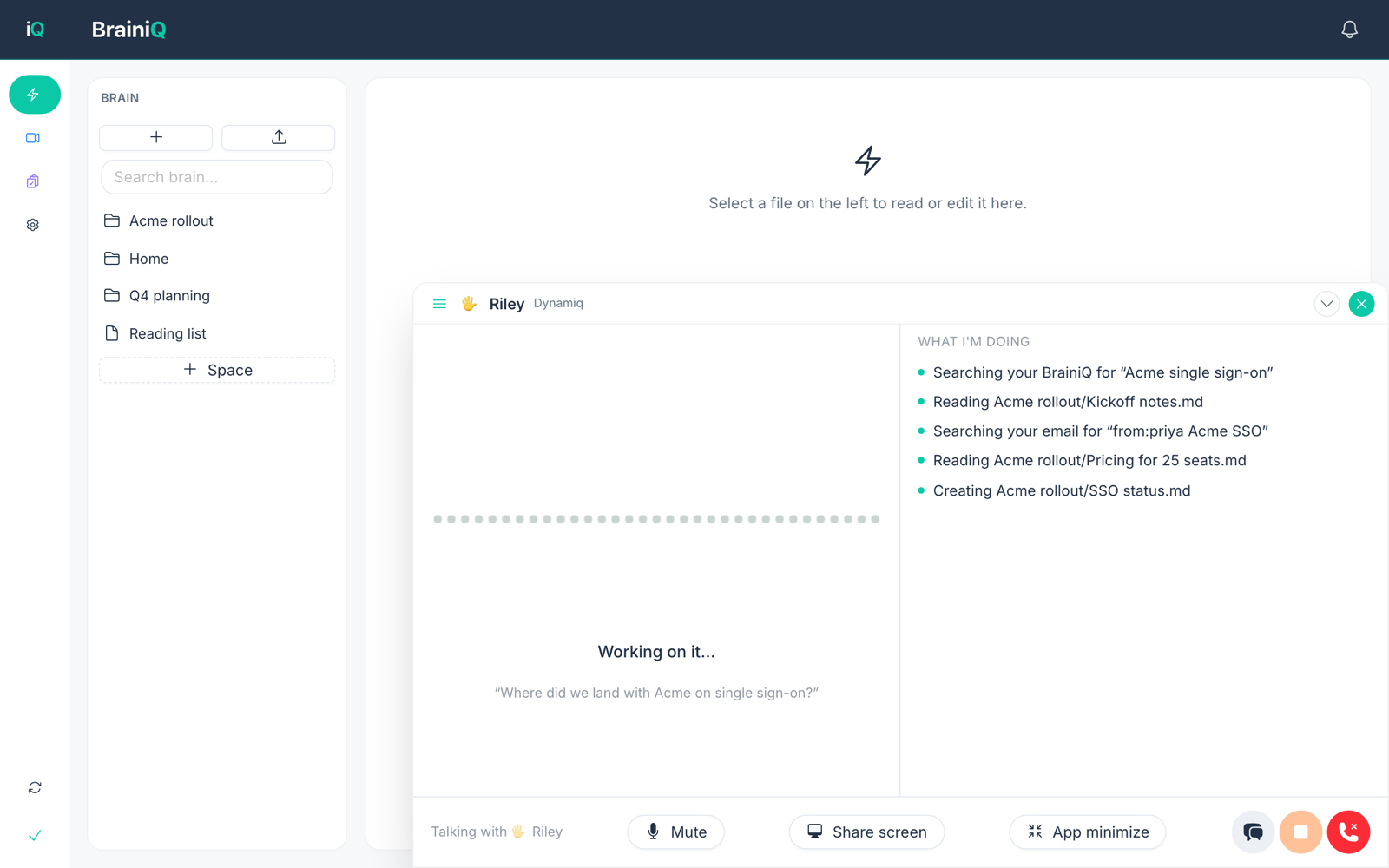
- Speak. A panel on the right, What I'm doing, shows what the Right Hand is searching and reading while he works on it.
- Use Mute to silence your microphone, Share screen to show him what you are looking at, and the red phone button to end the call.
See Talk to BrainiQ for troubleshooting.
Your first day, step by step
- Join the beta, download and sign in.
- Set up your Right Hand: name, personality and voice.
- Add a folder or two and upload a few notes or documents (your brain).
- Ask your Right Hand a question about them in the chat.
- Try the same question by voice.
- Create a space for your biggest project.
- Connect an account such as Gmail or Google Calendar so he can see your email and calendar.
- Install the phone app with the same email.
Something not working? Email support@dynamiqai.io or see Send us diagnostics.