Connect Quo (business phone)
Let your Right Hand read your Quo texts and calls. Sending a text always waits for approval.
Connect your Quo business phone with an API key so your Right Hand can read texts and calls.
How to connect
Connect from your Right Hand chat; no browser sign-in is involved.
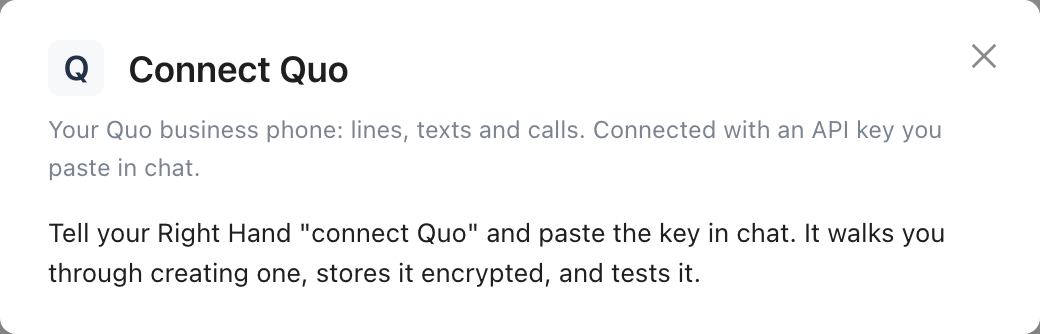
Open Settings, then Integrations & Skills, find Quo under Add an integration and select Connect. It tells you to ask your Right Hand to connect it.
In the Right Hand chat, say "connect Quo". It walks you through creating a key at Quo:
- Sign in to Quo as a workspace owner or admin.
- Go to Settings, then Integrations, then API (path approximate).
- Generate an API key, name it something like "Dynamiq", and copy it.
Paste the key into that chat. Your Right Hand stores it encrypted, tests it against Quo, and tells you the result. The icon turns green.
Never paste this key, token or password anywhere except your Right Hand chat inside Dynamiq, or the Dynamiq field that asks for it. Don't put it in an email, a Slack message, a text, a document or another website. Dynamiq stores it encrypted, tests it, and never shows it back.
What your Right Hand can do
- List your Quo phone lines
- See recent conversations and read a text thread
- Look up a contact
- Read call summaries, list calls and fetch a recording
What it can't do
- Text anyone without asking you first
What waits for your approval
- Sending a text from your business line always waits for your approval. You see the text and the number first.
How to disconnect
- Open Settings, then Integrations & Skills.
- Select the Quo icon, then Disconnect, then confirm.
Dynamiq stops using Quo straight away. You can also remove Dynamiq from the provider's own list of connected apps. Where that lives varies, so look for something like Connected apps or Third-party access in your Quo account settings (menu names are approximate).
Common problems
- Dynamiq says the key was rejected. Copy it again in full, with no spaces at the start or end, and check it hasn't been revoked at Quo. Make a fresh one if in doubt.
- The key works but an action fails. The key is probably missing a permission. Create a new key with the permissions listed above and replace the old one by telling your Right Hand to "replace my Quo key".
- Still stuck? See Send diagnostics.
See also: Connect an account, all integrations.