Connect Nextcloud
Let your Right Hand browse, search and read Nextcloud files. Uploads wait for approval.
Connect your Nextcloud so your Right Hand can find and read your files.
How to connect
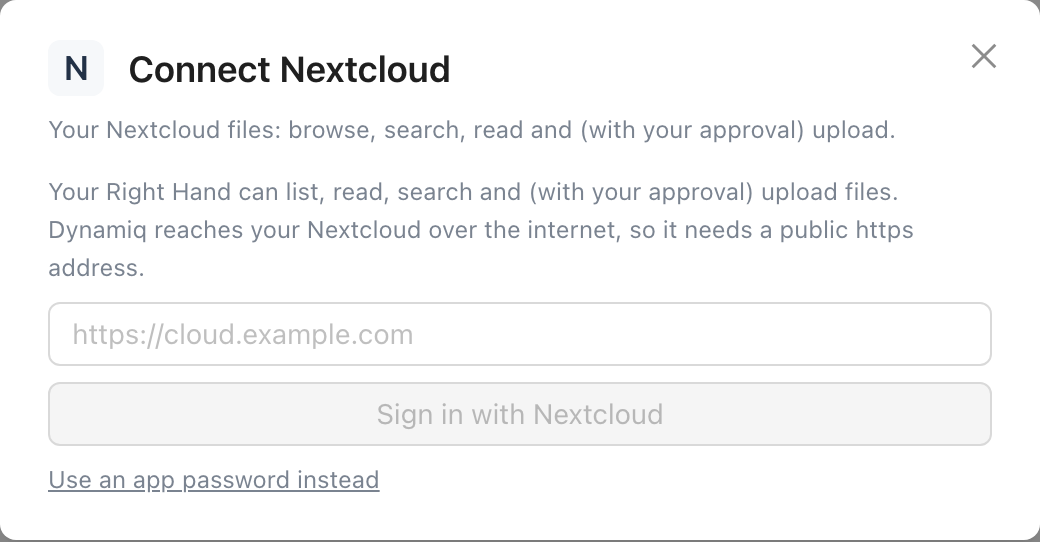
Nextcloud signs in through your own server, so there are two ways in.
- Open Settings, then Integrations & Skills, find Nextcloud under Add an integration and select Connect.
- Type your server address (for example https://cloud.example.com) and select Sign in with Nextcloud.
- Approve Dynamiq in the browser window that opens. The window closes and the icon turns green.
If that doesn't work, choose Use an app password instead. In Nextcloud go to Settings, then Security, then Devices & sessions (path approximate), type a name like "Dynamiq" and create an app password. Then enter your username and the app password in the Dynamiq fields.
Never paste this key, token or password anywhere except your Right Hand chat inside Dynamiq, or the Dynamiq field that asks for it. Don't put it in an email, a Slack message, a text, a document or another website. Dynamiq stores it encrypted, tests it, and never shows it back.
If you belong to a shared brain, a Connect for menu lets you connect Nextcloud for everyone in that brain, optionally limited to one folder.
What your Right Hand can do
- List folders and search for files
- Read files
- Upload a file, with your approval
What it can't do
- Upload without asking you first
- Reach a server that isn't on the public internet
What waits for your approval
- Uploading a file always waits for your approval.
How to disconnect
- Open Settings, then Integrations & Skills.
- Select the Nextcloud icon, then Disconnect, then confirm.
Dynamiq stops using Nextcloud straight away. You can also remove Dynamiq from the provider's own list of connected apps. Where that lives varies, so look for something like Connected apps or Third-party access in your Nextcloud account settings (menu names are approximate).
Common problems
- "Couldn't start the Nextcloud sign-in". Check the address starts with https:// and opens in a normal browser. Dynamiq reaches your server over the internet, so a server only reachable on your home or office network won't work.
- Dynamiq says the key was rejected. Copy it again in full, with no spaces at the start or end, and check it hasn't been revoked at Nextcloud. Make a fresh one if in doubt.
- The key works but an action fails. The key is probably missing a permission. Create a new key with the permissions listed above and replace the old one by telling your Right Hand to "replace my Nextcloud key".
- Still stuck? See Send diagnostics.
See also: Connect an account, all integrations.