Connect Google Calendar
Let your Right Hand see your week, find free time and manage events.
Connect a Google account's calendar so your Right Hand can answer scheduling questions and manage events for you.
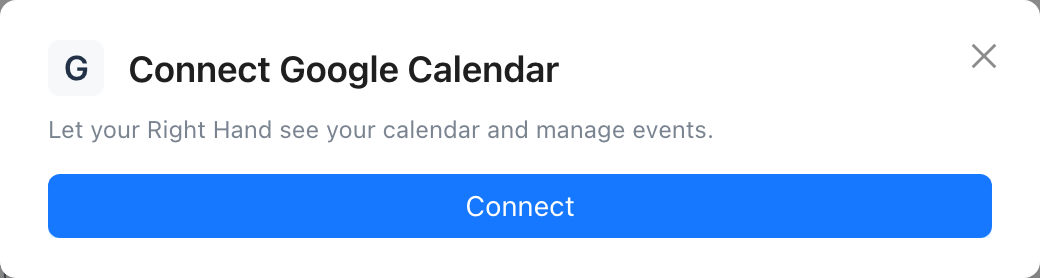
How to connect
- Open Settings, then Integrations & Skills.
- Under Add an integration, find Google Calendar and select Connect.
- Your browser opens the provider's own sign-in page. Sign in and approve access.
- Return to Dynamiq. The Google Calendar icon now shows a green dot, which means connected.
What your Right Hand can do
- See your calendars and events
- Find free time across calendars
- Create and change events, and answer invitations
- Set a default calendar for new events
What it can't do
- Read or change calendars on accounts you haven't connected
What waits for your approval
- Creating, moving or changing an event, and answering an invitation, may ask you first.
How to disconnect
- Open Settings, then Integrations & Skills.
- Select the Google Calendar icon, then Disconnect, then confirm.
Dynamiq stops using Google Calendar straight away. You can also remove Dynamiq from the provider's own list of connected apps. Where that lives varies, so look for something like Connected apps or Third-party access in your Google Calendar account settings (menu names are approximate).
Common problems
- The icon shows "Reconnect needed". Google stopped accepting the saved sign-in (a password change or a removed app does this). Select the icon, then Reconnect, and sign in again.
- Nothing happens after you approve in the browser. The handoff back to Dynamiq can be blocked. Wait a few seconds; Dynamiq keeps checking for about three minutes. If it still shows "Waiting for sign-in", select Try again.
- The tile says "not set up on the server yet". That's on our side. Email help@dynamiqai.io.
- Still stuck? See Send diagnostics.
See also: Connect an account, all integrations.